How to remove objects or people from a photo with AI
A photobomber in the one good shot from a trip. Power lines slicing across a clean sky. A bin, a cable, your own reflection in a shop window. You don't need masking tools or a clone brush to fix any of it — GeniGPT's AI photo editor removes objects and people when you type what should go. Free to start, no signup, no watermark.
Remove objects in three steps
The whole job happens on one page. Upload the photo, type a removal instruction in plain English, and download the cleaned result — usually in about a minute, a few minutes for complex edits. There is no account to create and no card to enter, downloads carry no watermark, and your first 3 generations are free.
- Upload. Open the photo editor and add your image — JPG, PNG, or WebP all work.
- Type what should go. Be specific: "remove the man in the red jacket on the right" beats "remove him". If the fill matters, say it — "fill the gap with more sand".
- Generate and download. Check the result at full size. If a trace remains, run the result through again with a short follow-up such as "remove the leftover shadow".
Before and after
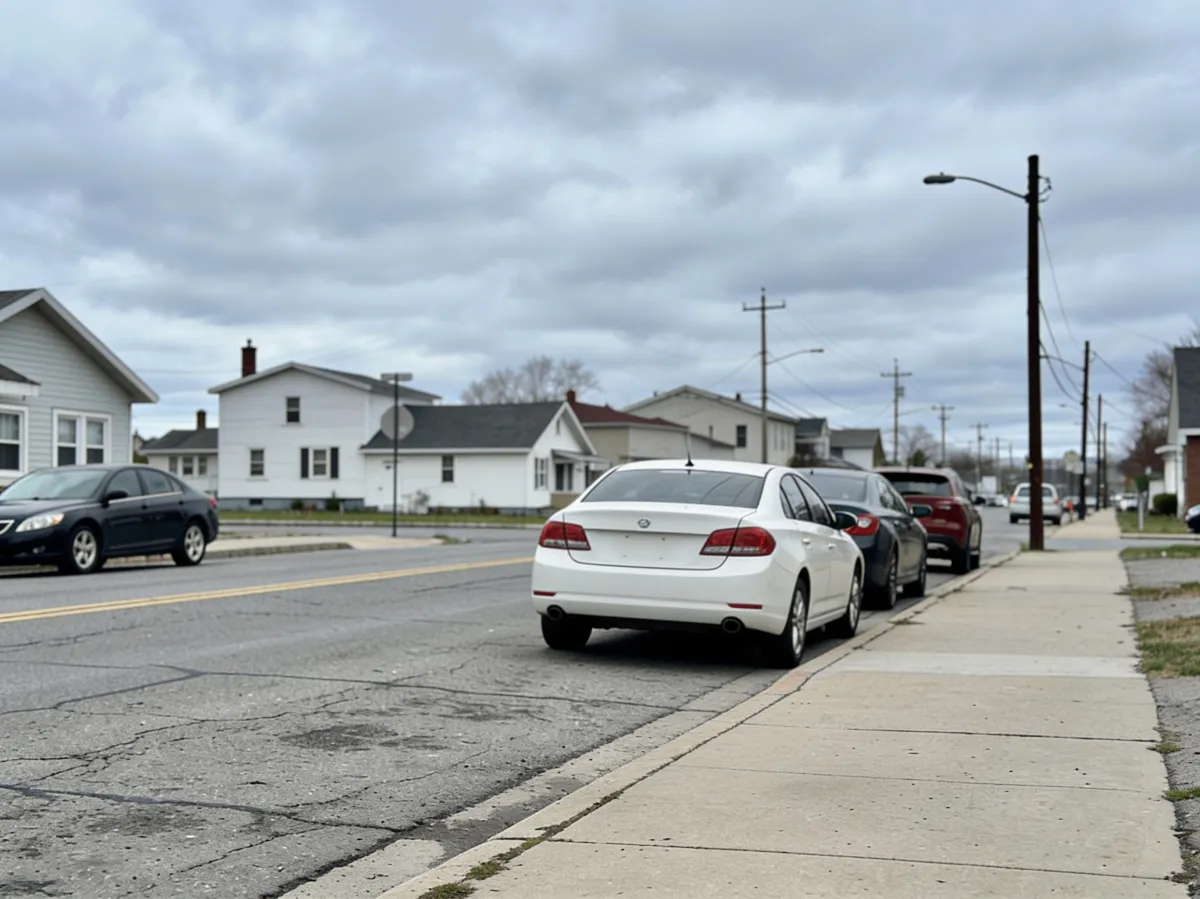
Here is a real edit, made with the same tool this guide links to. The original is a landscape street shot with overhead power lines crossing the sky and a green trash bin on the sidewalk; one typed instruction removed both, and the editor rebuilt the sky, houses, and pavement behind them.
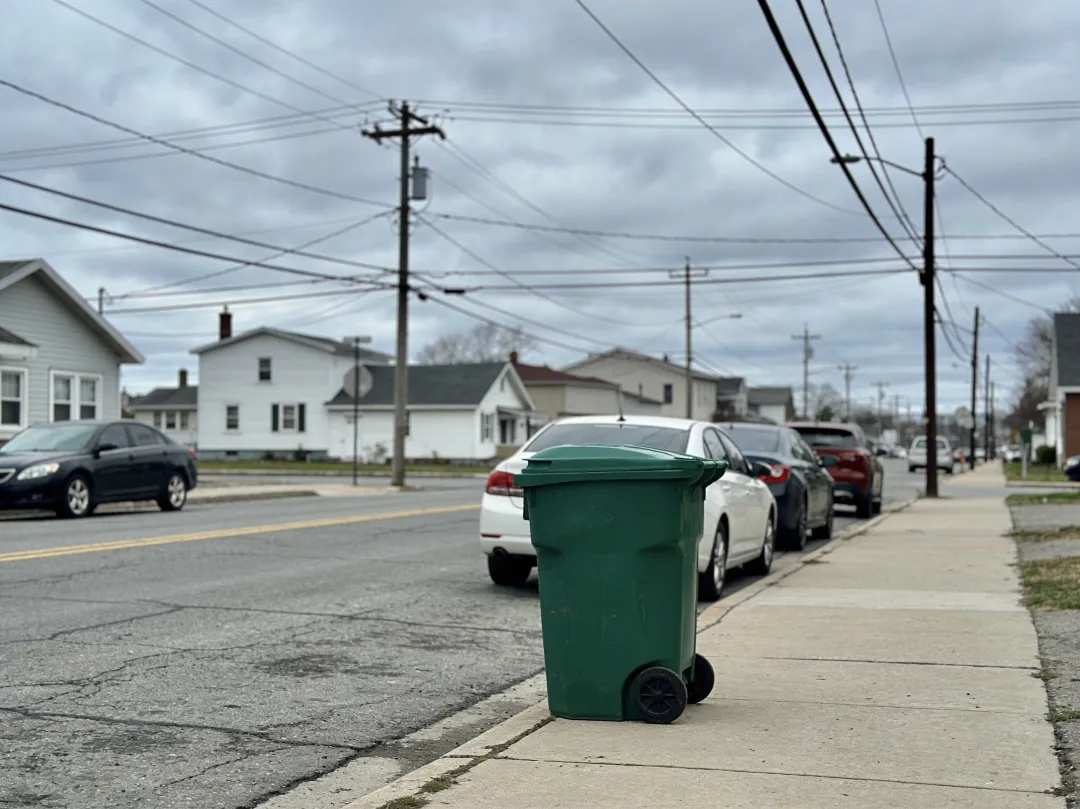
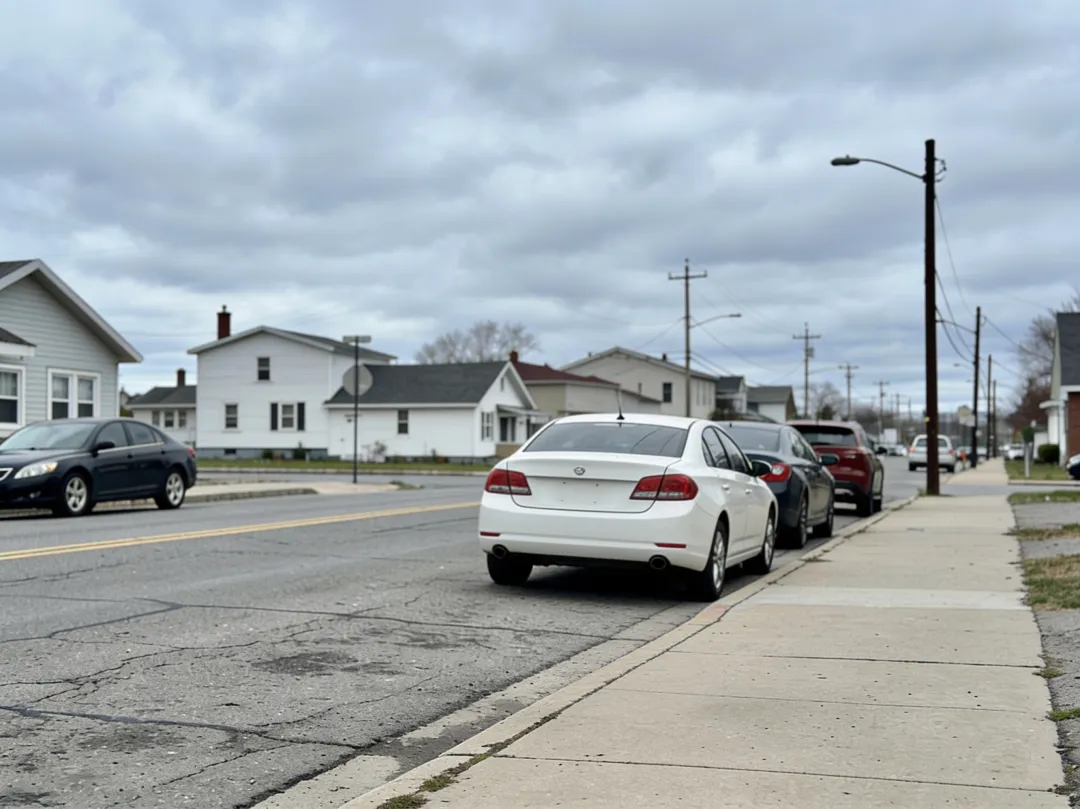
The lamp posts stay; the wires between them are gone, and the sky fills in with the same overcast cloud. The bin's patch of sidewalk picks up the surrounding concrete texture. When a removal works, nothing announces the edit — the photo just looks like the day the clutter wasn't there.
What you can remove
Most everyday removals are one-pass edits: a stranger in the background, wires against the sky, a bin at the edge of the frame, glare on glass. The editor fills each gap with background matched to the light and grain of your photo. Some cases are harder, and it helps to know which before you start.
- Photobombers and background strangers — people who don't overlap your subject usually vanish cleanly, small crowds included.
- Power lines, cables, and antennas — thin lines against sky are among the easiest removals there are.
- Bins, cones, signs, and street clutter — solid objects on pavement or grass fill in well.
- Reflections and glare — name the surface: "remove my reflection from the shop window".
Two honest caveats. Very small objects sitting in busy texture — a cigarette butt on gravel — can survive the first attempt, and objects that overlap your subject, like a hand on a shoulder or hair across a face, can leave soft traces where they touched. A second pass on the output usually finishes the job; keep the follow-up short and local.
Five removal prompts to try
Each link below opens the editor with the prompt already filled in — add your photo, adjust the wording to whatever is actually in your frame, and generate. Specific wording wins: name the object, its color, and where it sits in the picture, and say what should stay untouched.
- Remove the person in the background on the left, keep everything else unchanged
- Remove all the overhead power lines from the sky
- Remove the green trash bin from the sidewalk
- Remove my reflection from the shop window
- Remove the photobombers behind us and fill in the beach naturally
The same typed-edit approach covers more than removals — see how to change a photo background or restore an old photo with the same tool.
Questions, answered
Quick answers on cost, formats, and privacy. The editor works without an account: upload, type, download. Your first 3 generations are free — a lifetime allowance, not a daily one — and Pro credits add more when you need them. Uploads are used only to run your edit, and you can request deletion at any time.
Is it free to remove objects from a photo with AI?
Yes, to start. Your first 3 generations are free — no signup, no card — and every download is watermark-free. If you need more edits, Pro credits add them.
Can AI remove a person from a photo?
Yes. Type who should go — for example, remove the man in the blue jacket on the left — and the editor erases them and fills in the background behind them. Crowds and people who overlap your subject can take a second pass.
What photos can I upload, and how big is the result?
The editor accepts JPG, PNG, and WebP, and you can combine up to 4 photos in one edit. Results typically come back at 1,000–1,800 px on the long side, usually in about a minute.