How to restore and colorize old photos with AI
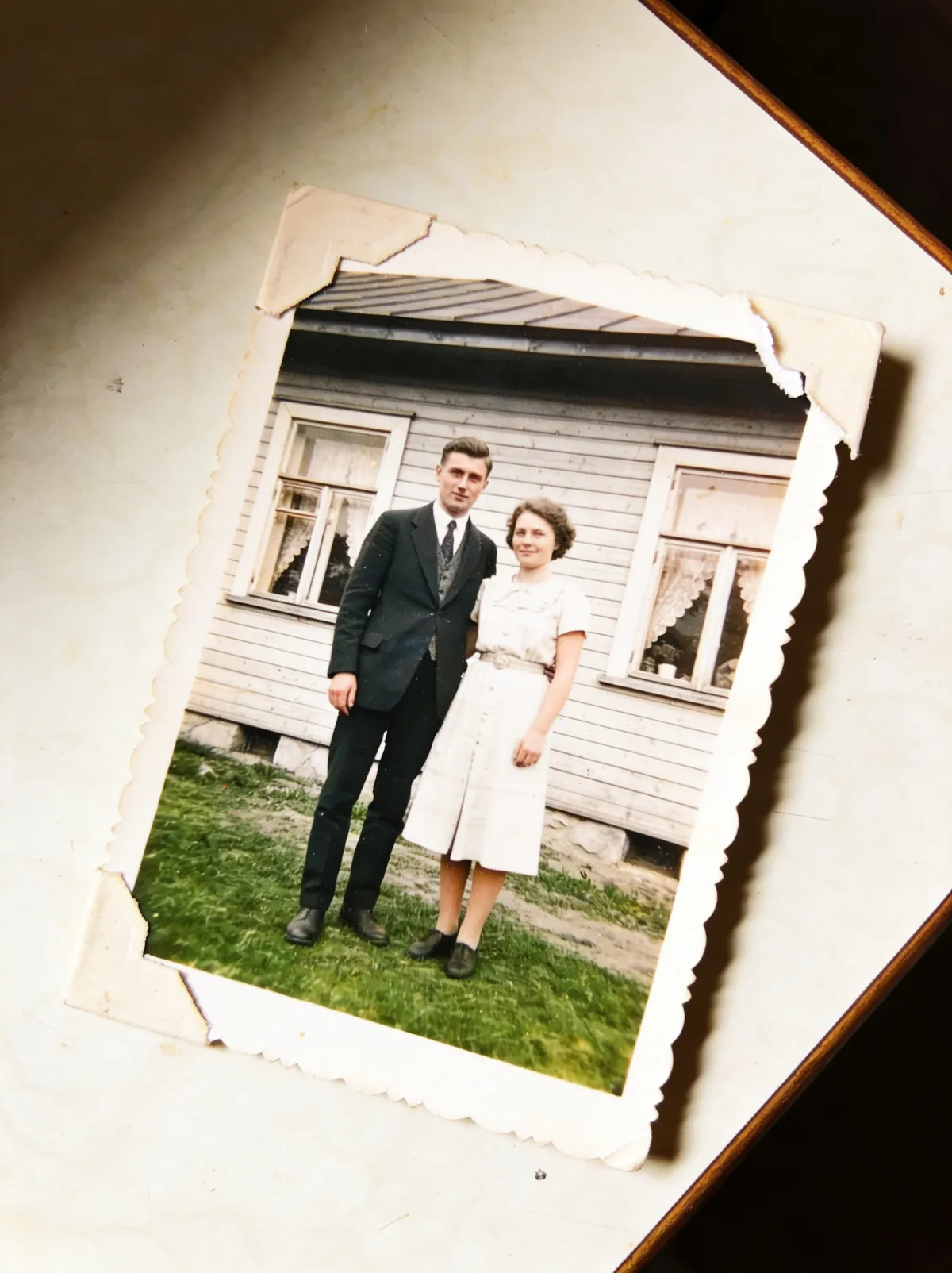
That box of prints in the closet doesn't need a photo lab anymore. Scan the photo — or simply photograph the print with your phone in even light — upload it, and type what you want fixed. GeniGPT repairs scratches, creases, and fading, and can colorize black-and-white shots, usually in about a minute. No signup, no watermark, and your first 3 generations are free.
Start with a good digital copy
Restoration starts with the best digital copy of the print you can make. A flatbed scanner at 600 DPI is ideal, but a phone photo works: lay the print flat near a window, avoid direct sun and lamp glare, fill the frame, and shoot straight down. The sharper and more evenly lit the copy, the more detail the AI has to work with.
If the print is glued into an album, photograph it in place rather than peeling it out — a slight page curve is far easier to fix than torn emulsion.
Restore it step by step
The whole job happens on the AI photo editor: you upload the scan, describe the repair in plain words, and download the result. There is no account to create and no special restoration mode to find — damage repair and colorization are simply edits you type, like any other.
- Open the AI photo editor. It runs in the browser and accepts JPG, PNG, and WebP files.
- Upload your scan or phone photo of the print.
- Type the repair you want — for example, Restore this old photo: remove the scratches and creases, then colorize it naturally.
- Generate. Results usually arrive in about a minute; complex repairs can take a few minutes.
- Download the result — no watermark, typically 1,000–1,800 px on the long side.
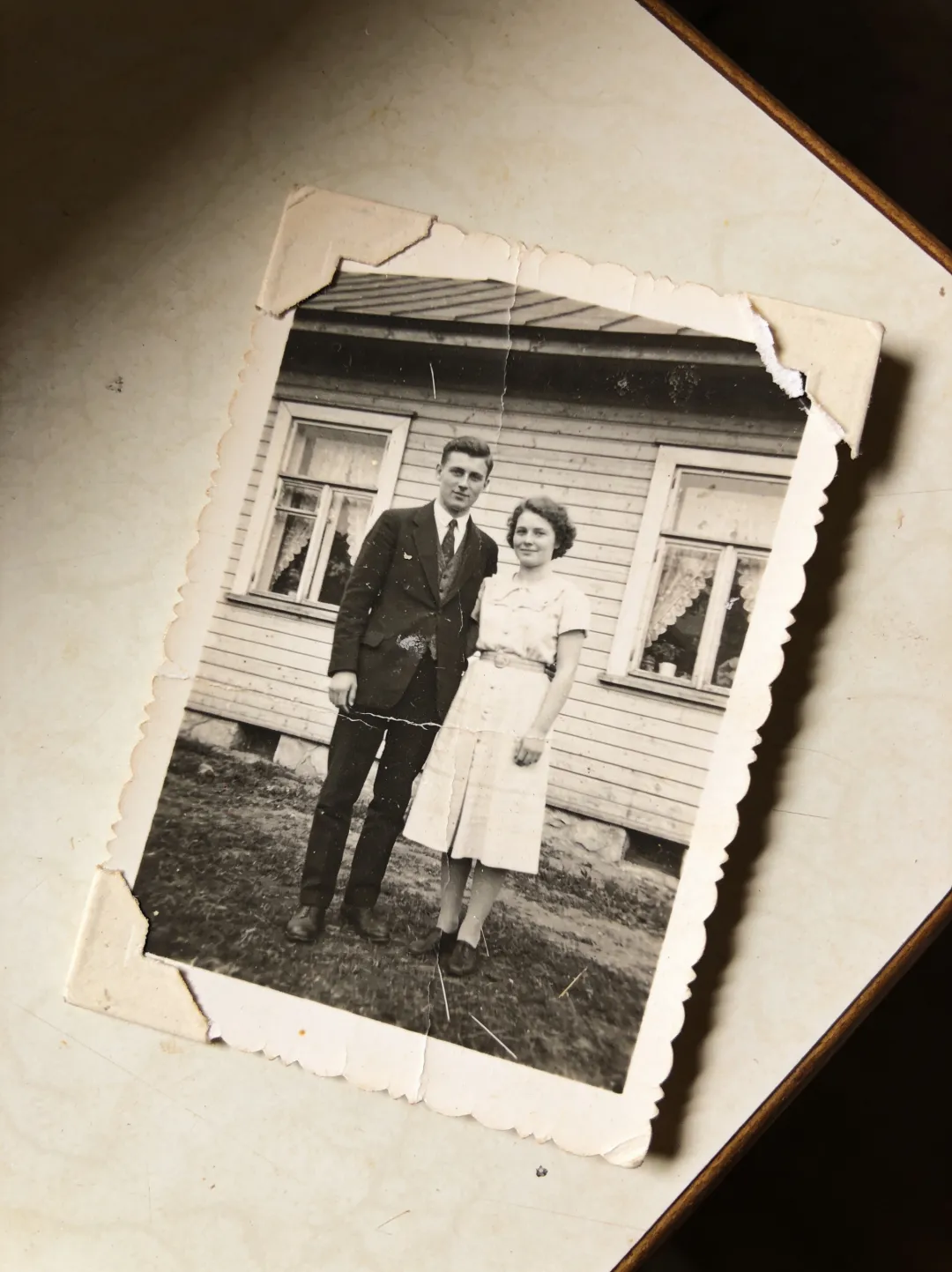
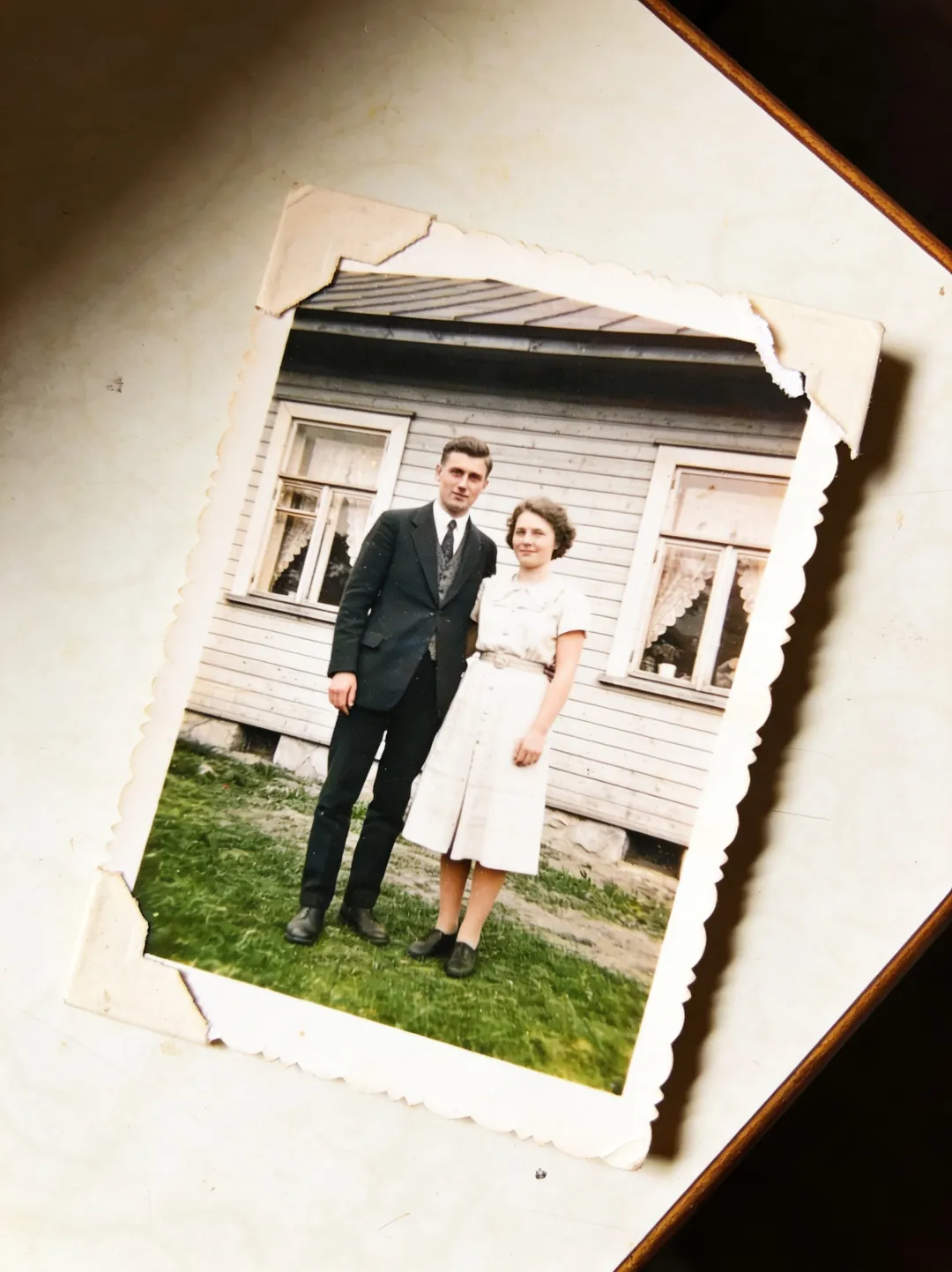
What AI restoration handles well
Typed restoration covers the common ways prints age. Surface damage — scratches, dust marks, creases from a fold — cleans up reliably, and faded or yellowed images come back with their contrast and tonal range restored. Colorization is the other big one: the AI reads the scene and fills in natural-looking color for skin, clothing, and background.
- Scratches and dust — surface marks disappear without smearing the detail underneath.
- Creases and fold lines — including the white break lines a folded print leaves behind.
- Fading and color casts — washed-out prints regain contrast, and yellowed ones lose the cast.
- Colorization — black-and-white photos get natural color across the whole scene.
If the problem is a photobomber or background clutter rather than damage, that's a different job — see the guide to removing objects from a photo.
Where restoration reaches its limits
Be realistic about heavy damage. Where a region of the photo is simply gone — a torn-off corner, a face split by a deep crease, a large stain — the AI reconstructs what was probably there. That reconstruction is a plausible guess, not a recovery: the missing detail no longer exists in the print, so the model invents it from context.
Two practical consequences. First, if the damaged area includes a face, compare the result against other photos of the person before trusting it — a reconstructed face can look convincing and still be wrong. Second, the output is a newly generated image, typically 1,000–1,800 px on the long side, so keep your original scan; the restoration complements it rather than replacing it.
Four restoration prompts to try
These four prompts cover the most common restoration jobs. Each link opens the editor with the prompt already filled in — upload your scan, adjust the wording to match your photo, and generate. Naming the damage you actually see (scratches versus creases versus fading) gives noticeably better results than a generic request to fix the photo.
- Restore this old photo: remove the scratches and creases, then colorize it naturally — the full treatment for a damaged black-and-white print.
- Repair the scratches, dust, and creases on this photo, but keep it black and white — cleanup without colorization, if you prefer the original mood.
- Colorize this black-and-white photo with natural, realistic colors — for prints that are clean but monochrome.
- Restore this faded color photo: bring back the contrast and correct the yellow cast — for color prints from the 1970s–90s that have shifted.
Once the photo is clean, you can push it further — the guide to turning a photo into another style covers watercolor, film looks, and more.
Old family photos are personal. Uploads are used only to run the service, and you can ask for deletion at any time — details in the privacy policy.
Questions, answered
Are the colors in a colorized photo accurate?
Treat them as plausible, not as a historical record. The AI picks colors that fit the scene — believable skin tones, foliage, familiar fabric shades — but it cannot know that a particular dress was actually blue. If true colors matter, a colorized photo is an interpretation, not evidence.
Is restoring old photos with AI free?
Yes, to start — your first 3 generations are free, with no signup and no credit card, and downloads have no watermark. Pro credits add more generations.
Can AI fix a torn photo or one with missing pieces?
Partly. It fills a missing region with a reconstruction of what was probably there, which works well for backgrounds and clothing. The fill is a generated guess, not recovered detail, so check reconstructed faces carefully against other photos from the time.