Turn a photo into another style with AI (image-to-image, explained)
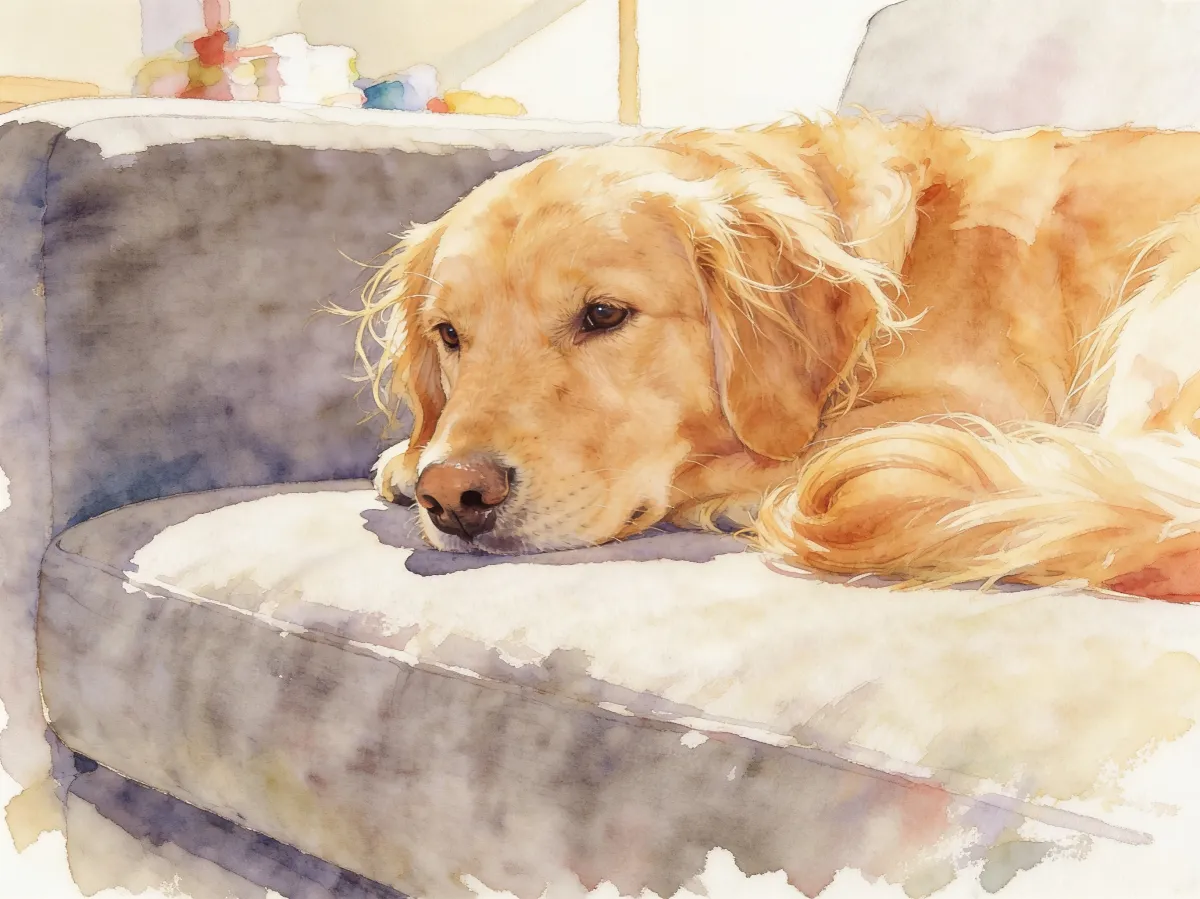
Image-to-image means the AI starts from your photo instead of a blank page. You upload a picture, type what you want in plain words — “turn this photo into a soft watercolor painting” — and it redraws the image in that style while keeping the composition: same dog, same sofa, same light, different medium. That is the whole idea. This guide shows how to do it, with six prompts you can copy.
How to turn a photo into another style
The fastest way to restyle a photo is a plain-language edit: upload the image, describe the target style in one sentence, and generate. GeniGPT's AI photo editor accepts JPG, PNG, or WebP, needs no account and no card, and your first 3 generations are free. A result usually arrives in about a minute.
- Open the editor — there is no signup step, it goes straight to the upload box.
- Upload the photo you want to restyle (JPG, PNG, or WebP).
- Type the target style as one sentence, naming the medium: “Turn this photo into a soft watercolor painting.”
- Generate. A simple restyle usually takes about a minute; complex prompts can take a few minutes.
- Download the result — full resolution, typically 1,000–1,800 px on the long side, with no watermark.
Here is that exact watercolor prompt run on a real photo:
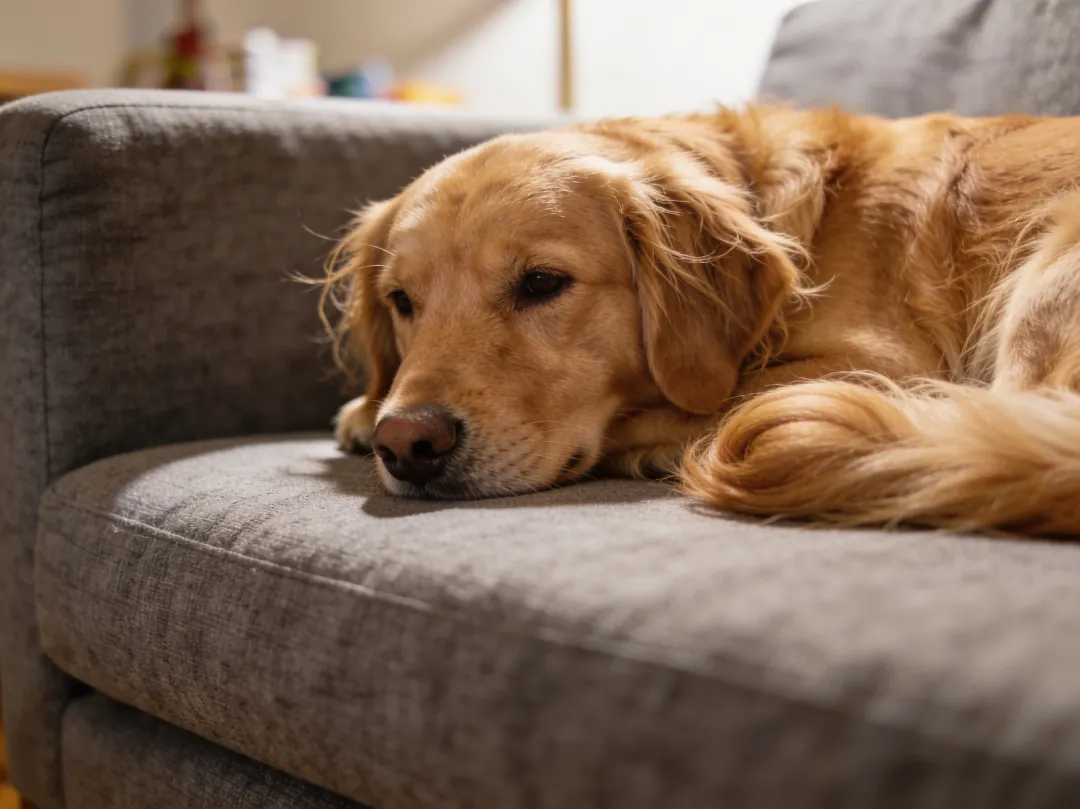
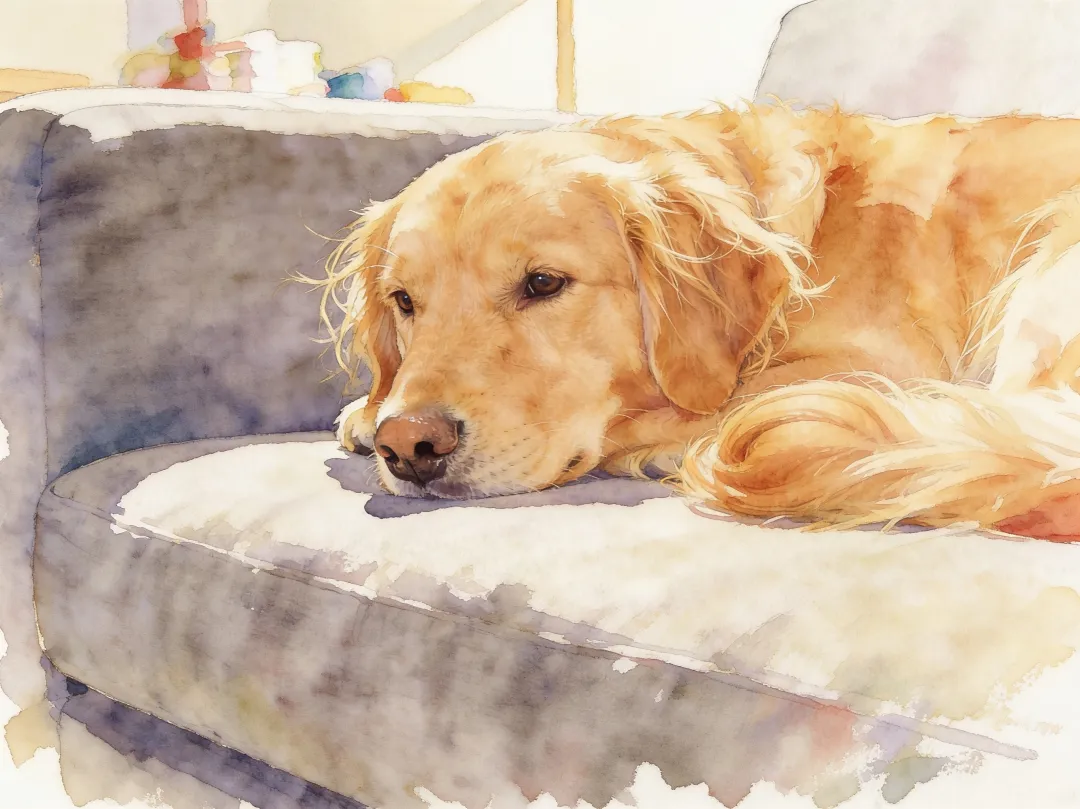
Notice what carried over: the pose, the sofa, the window light, even the blur in the background — only the medium changed. That consistency is what makes image-to-image useful for restyling, and it holds across the other styles below too.
Six style prompts to try
Each prompt below is a complete instruction — click one and it opens the editor with the text prefilled, so you only add your photo. Name the medium first, then one or two qualities of it. Vague words like “artistic” produce mush; concrete words like “watercolor,” “grain,” or “brushstrokes” steer the model.
- Watercolor — Turn this photo into a soft watercolor painting
- Oil painting — Turn this into a classical oil painting with visible brushstrokes
- Anime — Turn this photo into a hand-drawn anime film illustration with a soft pastel palette
- Film photo — Make this look like a 1970s film photograph with grain and faded colors
- Pencil sketch — Turn this photo into a detailed pencil sketch on textured paper
- Poster — Turn this photo into a minimalist vintage travel poster with flat colors
More restyle prompts, with before-and-after examples of each, are in the restyle prompt library.
When to use the image-to-image tool instead
This guide uses the editor because a restyle is just an edit you describe. If image-to-image is the whole job — you plan to keep feeding photos in and restyling them — the dedicated image to image AI tool page is the better starting point. It is the same free start: no signup, no card, and no watermark on downloads.
A simple rule of thumb: use the editor when you can say exactly what should change in one photo, and start from the image-to-image page when the photo-in, restyled-photo-out workflow is the point. One caveat before restyling anything old: if the source is scratched, creased, or faded, repair it first — the guide to restoring old photos with AI covers that step — and then apply the style on the clean version.
Questions, answered
Quick answers to the questions people ask most before their first restyle: cost, likeness, and how image-to-image differs from text-to-image. If yours is not covered here, the editor is free to try, so the cheapest answer is often to upload a photo and run the prompt yourself.
Can AI turn a photo into a painting for free?
Yes. Upload the photo to GeniGPT's editor, type the painting style you want — watercolor, oil, gouache — and generate. It costs nothing to start: your first 3 generations are free, with no signup and no card, and the download has no watermark.
How do I turn a photo into anime for free?
Upload the photo and use a prompt like “Turn this photo into a hand-drawn anime film illustration with a soft pastel palette.” It usually takes about a minute. The free generations cover it — no account needed — and if the first pass looks off, adjust the wording and generate again.
What is the difference between image-to-image and text-to-image?
Text-to-image builds a picture from a written description alone. Image-to-image starts from a photo you upload and changes it according to your instruction, so the composition — the pose, the framing, the scene — carries over while the style or the details change. Restyling a photo is image-to-image; inventing a scene from scratch is text-to-image.